A practical guide comparing cloud-managed security cameras to traditional NVR/DVR systems. Learn why businesses are migrating to cloud and when on-premise still makes sense.

Mobile access can simplify entry for people who need secure, convenient access across one or more properties. The practical results depend on correct setup, clear permissions, and a process for handling changes.
A mobile access app turns a smartphone into a digital credential for compatible secured areas. For organizations, that can reduce the effort involved in issuing and collecting physical credentials, especially when people move between locations or work on changing schedules. The right approach still depends on the building, access rules, device mix, and operating procedures. Before deployment, decision-makers should define who needs access, which doors are involved, and who owns ongoing administration.
Brivo Mobile Pass is a digital credential available with the Brivo Access cloud-based access control platform. An administrator can email a pass to a user, who then adds the credential to the mobile application and uses a smartphone to unlock doors. The Brivo Mobile Pass overview is a useful starting point for understanding that invitation-based flow. The exact experience depends on the account and access permissions assigned by the organization.
For an authorized user, the central task is straightforward: present the smartphone at a compatible entry point and follow the access behavior configured for that location. The source material also describes NFC and Bluetooth as technologies used by the digital credential. Some environments may include visitor communication through a door station, but that capability should be confirmed during system planning rather than assumed for every installation.
Users consume the access assigned to them. Administrators issue or manage credentials and determine the permissions attached to them, while property managers may coordinate access policies across residents, staff, vendors, or visitors. Those roles can overlap in smaller organizations, but separating approval, provisioning, and review responsibilities makes changes easier to track. It also gives facilities and IT teams a clearer handoff when someone joins, changes roles, or leaves.
Mobile access is often a sensible fit when people already carry smartphones and access needs change frequently. It can be useful for distributed teams, multi-tenant properties, and temporary access arrangements, provided the organization has a reliable enrollment and support process. Physical credentials may still be appropriate for some users or situations, so a measured design should consider fallback procedures, device policies, and the realities of each site.
Setup is more than downloading an application. The account must be active, the user must receive the correct invitation, and the phone must support the access method used at the entry point. Organizations should test the complete journey before communicating instructions widely. A short pilot can expose permission, network, or enrollment issues while they are still easy to correct.
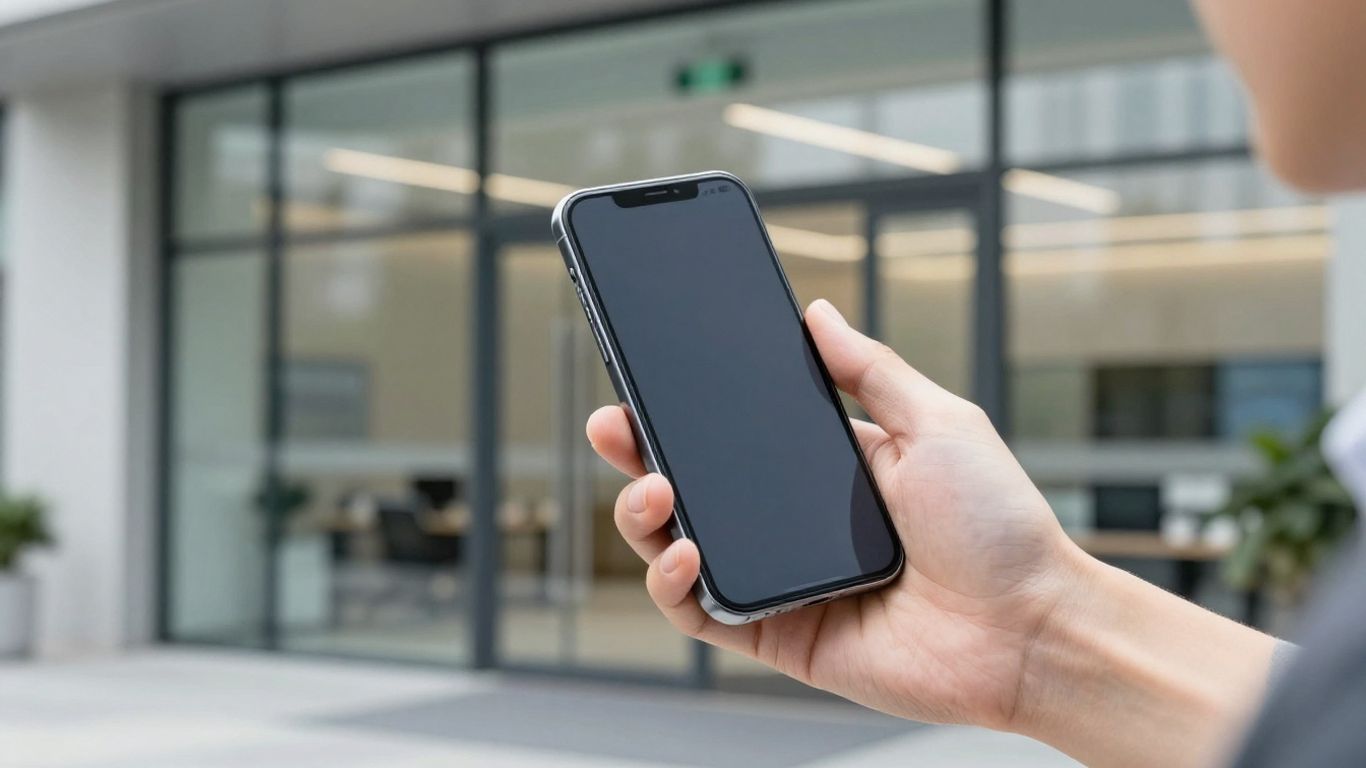
Start by confirming that the user has a supported smartphone, an active account or invitation, and access assigned by an administrator. The organization should also identify which doors or areas the user is expected to enter. This simple check prevents a common misunderstanding: installing an app does not, by itself, create authorization to enter a building.
Users should obtain the application from the official mobile app store appropriate to their device and verify the developer and product name before installing. Avoid links forwarded through unverified channels. After installation, keep the phone’s operating system and application current according to the organization’s normal device-management practices.
An administrator sends the mobile pass or invitation to the intended user, who follows the enrollment instructions and adds the credential to the application. The user should complete activation before arriving at the door, ideally while connected to a dependable network. If an invitation was sent to the wrong email address or has timed out, the administrator is usually the right person to correct it.
Access behavior can depend on phone settings, so users should review Bluetooth, location, and notification permissions when prompted. The appropriate settings vary by operating system and organizational policy; granting more access than necessary is not a substitute for troubleshooting. A brief test at the actual entry point confirms whether the phone and credential are ready.
Using a phone at a door should feel simple, but entry points differ in reader position, range, and configuration. Users should know where to hold or present the device and whether the screen must be active. Building operators should provide instructions that match the physical environment instead of relying on generic app guidance. A supervised first use is especially helpful for visitors and new occupants.
The user begins by opening the invitation and following the enrollment steps on the phone. The credential should appear in the application after the process is completed, assuming the invitation is valid and the account has been assigned access. The mobile pass redemption guide can help users follow that sequence without turning setup into a support request.
At the entry point, the user presents the phone as directed by the reader and waits for the access response. Bluetooth or NFC may be involved, depending on the configured experience and device. If the door remains locked, the user should avoid repeated attempts and first check the phone’s connectivity, permissions, and whether the correct door is being used.
People with access to more than one site should confirm that each property and entry point is included in their assigned permissions. A credential can be present while a particular door remains outside the user’s schedule or access group. Clear naming conventions, onboarding instructions, and a central contact for access questions reduce confusion when several buildings are involved.
A missing pass may reflect an incomplete enrollment, an invitation sent to another address, or a credential that has not been assigned to the relevant access group. An expired pass requires the administrator to review the intended dates and issue or extend access according to policy. Users should not share credentials while waiting for a correction, since doing so weakens accountability.
Everyday access management includes more than opening a door. Teams must keep credentials aligned with roles, respond to visitors, and maintain a record of who is authorized. That work becomes more predictable when ownership and escalation paths are agreed in advance. It also benefits from coordination between facilities, security, IT, and property operations.
Credential management should follow the person’s full access lifecycle: request, approval, issuance, change, suspension, and removal. The credential management solutions page describes centralized handling of different credential types and permissions. In practice, organizations should connect those changes to their joiner, mover, and leaver procedures so access does not linger after a role changes.
Access activity can help teams investigate a failed entry, confirm that a change took effect, or identify a pattern that deserves review. Notifications should be configured with care so useful events are visible without overwhelming the people responsible for response. Retention, access to logs, and escalation rules should follow the organization’s security and privacy requirements.
Temporary access works best when it has a defined recipient, purpose, start time, end time, and responsible sponsor. Before issuing it, the host or property team should verify the visitor’s identity and explain where the credential can be used. After the visit, access should expire or be removed through the normal administrative process rather than relying on memory.
Mobile credentials can sit within broader workflows for leasing, employee onboarding, contractor visits, and incident response. The useful question is not simply whether a phone can open a door, but how access requests are approved, recorded, reviewed, and revoked. HTS can help organizations assess physical security, IT, network infrastructure, and managed technology requirements together, with cloud-managed or onsite approaches considered as appropriate.
Convenience does not remove the need for disciplined access control. A phone is personal equipment, while a credential is an authorization tied to a person, device, and set of rules. Organizations should document how access is granted, what information is retained, and who can make changes. Those decisions should be reviewed as the portfolio, workforce, or regulatory obligations change.
A mobile credential reduces reliance on a physical key or card, but protection still depends on account controls, device security, and correctly configured permissions. Administrators should apply least-privilege access and review credentials on a regular schedule. Clear ownership improves security because someone is accountable for approving changes and responding when circumstances shift.
A lost phone should be reported through the organization’s defined support channel as soon as possible. The responsible administrator can review the user’s credential and determine whether access must be suspended or revoked. Users should also follow their normal device-lock, remote-wipe, and account-recovery procedures; the building access response is only one part of the incident.
Users should periodically review the application’s permissions and keep a screen lock enabled. Administrators should protect the accounts that can issue or revoke credentials with strong authentication and limited administrative rights. A permission review should explain why each setting is needed, how it is used, and what users should do if a device is replaced.
Mobile access can produce information about entry events, devices, and users. Before rollout, organizations should establish notice, retention, access, and deletion practices that fit their legal and operational requirements. Privacy expectations should be communicated plainly, particularly in residential, workplace, and visitor settings where people may not understand what activity is recorded.
Most access problems become easier to resolve when the user separates credential, device, door, and account questions. Start with the simplest checks and record the time, location, and visible response from the reader. Avoid changing several settings at once, since that can make the eventual cause harder to identify. Administrators should maintain a clear escalation path for issues that cannot be solved at the door.
Confirm that the invitation was sent to the email address used during enrollment and that the user completed the activation steps. Check whether the account is active and whether the administrator assigned the expected access. If the invitation is old, missing, or associated with another account, request a new invitation rather than attempting to transfer credentials informally.
First verify that the user is at the correct entry point and that the phone is presenting the credential as instructed. Then check whether Bluetooth or NFC is available, the application is open or permitted to operate as expected, and the user’s access schedule includes that door. The response should be documented and sent to the administrator if the problem continues.
Phone settings, battery-saving modes, operating-system updates, or organizational restrictions can affect nearby-device behavior. Review the relevant settings without granting unrelated permissions, then retry at a known compatible entry point. If several users experience the same issue, the problem may require an administrator or technical support team to review the configuration rather than another handset reset.
Reinstalling can help with a damaged local installation, but it should not be the first response when the underlying issue may be authorization. Before removing the application, confirm that the invitation and account details are available for reenrollment. If the issue remains, provide the administrator with the user, property, door, time, device, and steps already attempted.
A simple support record turns a vague complaint into useful evidence and helps distinguish a user setup problem from a wider access-system issue.
Mobile access is most effective when it is treated as part of an access-management program rather than as a standalone app download. With clear ownership, tested enrollment, appropriate permissions, and a defined response for lost devices or failed entries, organizations can make smartphone-based entry practical while preserving accountability across their buildings.
It can replace a physical credential for users and entry points that support the selected mobile access method, but organizations should decide whether a backup credential or alternate process is necessary.
Report the loss promptly, secure the device and associated accounts, and ask the access administrator to review, suspend, or revoke the credential according to policy.
Common causes include an incomplete enrollment, an invitation sent to the wrong address, an inactive account, or access that has not yet been assigned.
Some mobile access experiences use Bluetooth, while others may use NFC or another configured method. The required phone settings depend on the entry hardware and access design.
Only permissions needed for the configured experience and permitted by organizational policy should be enabled. Users should review the explanation provided by the operating system and application.
Define the visitor, sponsor, permitted areas, start and end times, and revocation process before issuing access. Review the credential after the visit or allow it to expire automatically when appropriate.
Bring in a specialist when access spans multiple sites, must connect with existing workflows, or involves recurring device, network, credential, or administrative problems that local troubleshooting cannot resolve.
Connect with us to explore our scalable solutions tailored to your unique needs and receive a personalized free quote.