A practical guide comparing cloud-managed security cameras to traditional NVR/DVR systems. Learn why businesses are migrating to cloud and when on-premise still makes sense.

A mobile credential can make everyday entry more convenient, but it works only when the organization has assigned access and the phone is ready to use it. A few setup checks and a clear troubleshooting routine help avoid confusion at the door.
A phone-based access app can give an authorized user a way to present a digital credential at an entry point. The exact doors and permissions available depend on the organization managing the property. For readers searching for the brivo app, it helps to distinguish the mobile credential itself from the access rules set by the building or workplace.
A mobile credential is a digital pass associated with a user and the access permissions assigned to that user. In this case, Brivo Mobile Pass is described as a smartphone credential that uses NFC and Bluetooth to access doors. The organization’s administrator assigns a pass; having the app alone does not establish permission to enter.
When a user presents the phone at a compatible reader, the credential is used to request entry. Whether that request succeeds depends on the user’s active permissions and the entry point’s configuration. That distinction matters: installing an app is a device step, while authorization is managed by the organization.
An access app may display or work with only the entry points made available to the user. A building might configure different access for different areas, schedules, or locations, so don’t assume that permission for one door applies everywhere. If a location or entry point is missing, the property administrator can confirm whether it should be available to your account.
It is also useful to learn how the specific entry point is intended to be used. A reader may require the phone to be presented in a particular way, while the surrounding door or gate may take a moment to respond. Follow posted instructions and avoid repeatedly trying different doors when you are unsure which one is assigned to you.
A mobile pass and a physical card serve a similar purpose: they are credentials used to request access. The difference is how the credential is carried and presented. A phone-based pass is stored in an app, while a card is a separate physical item; which option is available depends on the organization’s setup.
The comparison below can help set expectations without assuming that every site supports the same combination of credentials.
| Consideration | Mobile credential | Physical key card |
|---|---|---|
| Where it is kept | In a supported mobile app | Carried as a separate card |
| How it is presented | With the phone, following reader instructions | By presenting the card to the reader |
| Who assigns access | The organization’s administrator | The organization’s administrator |
| What to do if unavailable | Contact the administrator about the pass | Contact the administrator about the card |
Neither format guarantees entry on its own. The credential must be active, assigned to the right person, and permitted at that access point.
A person can use a mobile pass only when their organization or building has enabled the credential and assigned it to them. That may include residents, employees, or other authorized users, depending on the property’s policies. The administrator determines who is eligible and which areas are included.
If you are expecting an invitation but have not received one, check with the person who manages access rather than trying to create permissions yourself. An app account and an active pass are not necessarily the same thing; ask the administrator to confirm both your invitation and your access assignment.
Setup usually involves an invitation, an app installation, and a pass assigned by the organization. The precise steps can vary with the phone and the administrator’s process, so keep the invitation nearby and follow its instructions in order. If something is unclear, pause before trying multiple sign-in options.

Before beginning, make sure you can access the email address or account where your organization sent the invitation. Check that your phone has enough battery and that you can connect to the internet while completing setup. If your organization provided device or operating-system requirements, use those as the guide rather than relying on general assumptions.
It can help to confirm that the phone you intend to carry is the one associated with your invitation. If you use multiple devices or email addresses, ask the administrator which one is linked to your user record. That small check can prevent an otherwise confusing activation attempt.
An administrator typically needs to issue or assign the credential before you can use it. Look for a message from your building or organization and read it carefully, including any expiration or activation instructions. If no invitation arrives, check spam or other filtered folders before asking the administrator to resend it.
Use the invitation intended for your account, and avoid forwarding it to someone else. If its link has expired or appears to be associated with an unfamiliar account, request a fresh invitation through the organization’s normal support channel. That keeps the access assignment tied to the correct person.
Install the application using the official app-store listing or a link provided by your organization. Open it and sign in with the account details specified in the invitation. If the app asks for permissions, review what is requested and allow only what is needed for the access method and instructions provided by your organization.
The sign-in account should match the account used to receive the invitation. A familiar email address is not always the one an administrator has on file, particularly for people with separate work and personal addresses. If the sign-in screen reports a problem, verify the account before repeatedly resetting credentials.
After signing in, follow the in-app or invitation steps to add the assigned pass. The redemption process is separate from downloading the app, so wait for a clear confirmation that setup is complete before relying on the phone at a door. For a step-by-step reference, see this Brivo Mobile Pass redemption guide.
If the pass does not appear, record the message shown and contact the administrator to verify that it was assigned to the account you used. Repeating redemption steps with a different login can create more uncertainty; it is better to confirm the account and assignment first.
Using a mobile credential is a short sequence, but the right approach depends on the reader and the instructions at the site. Start by identifying the entry point your organization has authorized, then use the phone as directed. If the door does not respond, treat it as a signal to check the basics—not as a reason to assume you have permission.
If your app presents a list of locations or entry points, select the one that matches the door or gate you are standing at. Names can be similar across a large property, so take a moment to verify the location before presenting a credential. Signs or instructions at the site can help confirm the correct reader.
A visible entry point is not necessarily one assigned to your account. If you cannot find the right location, or the option you expect is missing, ask the administrator to check your access. This is more reliable than testing a credential at doors that may be outside your authorization.
Open the app and follow its instructions for presenting the credential at the reader. Depending on the supported access method, the phone may need to be brought close to the reader or used in another specified way. Keep the phone steady and allow a moment for the reader and door to respond.
A useful routine is to prepare before reaching the door: have the phone accessible, make sure the app is available, and check the reader’s instructions. Once you receive a clear indication that the entry request was accepted, proceed as the door or gate allows. Avoid holding the door for someone who has not been authorized to enter.
An app prompt may explain what action is needed, while posted instructions can clarify where and how to present the phone. Read the message fully instead of tapping through it automatically. If the prompt does not match the reader or location, stop and ask for help rather than guessing.
A short demonstration can also help new users understand the physical steps before they arrive at a busy entrance. Treat any video as a general visual aid; your organization’s instructions and the reader at your location take precedence.
If the entry point does not respond, pause and check that you are at the correct door, the pass is active, and the phone is being presented as instructed. Give the reader a moment before trying again. Repeated attempts without checking the message or location can make it harder to identify what went wrong.
If the app indicates success but the door remains closed, do not force it. Use another authorized route if one is available, or contact the building administrator or on-site support. They can determine whether the issue is with your permission, the reader, or the door itself.
The options visible in an access app depend on the account and the organization’s configuration. Some users may see one assigned location, while others may have access to multiple locations or entry points. Keep expectations practical: the administrator determines what is made available to you.
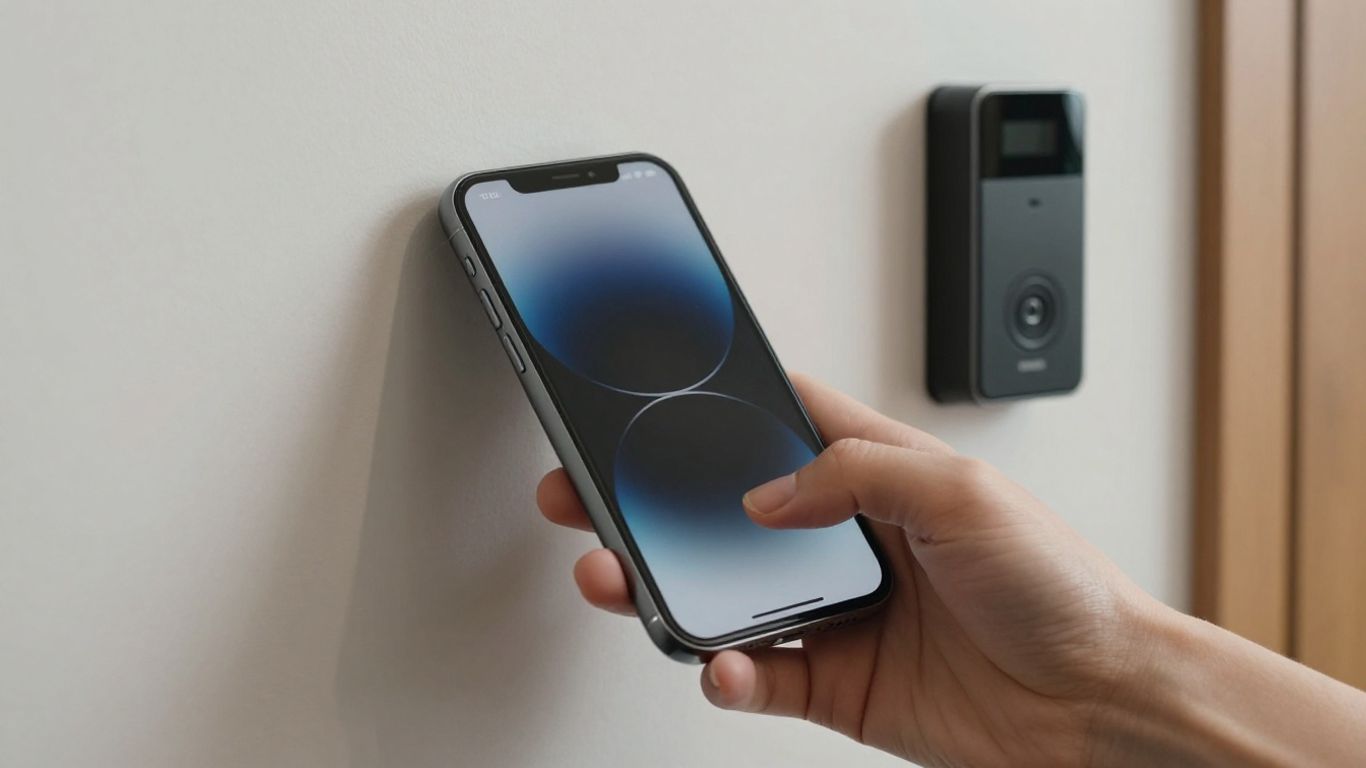
Use the app’s location or access-point view, if available, to check where your credential is intended to work. Confirm names and locations before you approach a reader, especially if a site has several entrances. If a location seems incorrect or is missing, the administrator can check the assignment.
Access information is not a substitute for local signage or site procedures. A location may be listed in the app but still require you to follow operating hours or other rules. Confirm those details with your organization when access expectations are unclear.
Phone settings can affect whether an app can communicate as expected, so review its permissions and notifications when setting it up. Grant permissions that the app or your organization’s instructions identify as necessary for the supported access method. If you are unsure why a permission is requested, consult the app’s information or your administrator before changing it.
Notifications can help you notice account messages or prompts, but they do not replace checking the app directly when you need to enter. Phone menus differ, so use your device’s settings to review what is enabled and revisit them if you replace or update your phone.
Some organizations may issue a mobile pass while also maintaining another credential for a user. Ask your administrator whether you are expected to carry both, and which one should be used at each entry point. Do not assume that a card or another credential will automatically share the same permissions as the phone pass.
A simple plan helps avoid delays: know which credential is assigned, where it is accepted, and whom to contact if it is unavailable. Keep any backup credential secure and follow your organization’s rules for carrying or returning it.
Keep your phone’s software and the access app current using normal device update practices. After a major update or a device change, verify that you can sign in and that the pass still appears. If anything has changed, confirm access with your administrator before relying on the phone for an important arrival.
Updates do not change the organization’s access assignment by themselves. If a pass disappears, appears inactive, or no longer works at a familiar reader, check the account and pass status with the administrator rather than reinstalling repeatedly.
A failed entry attempt can come from a phone setting, a sign-in problem, an inactive pass, or an access assignment that needs attention. Check one cause at a time and note any message displayed in the app. This makes it easier for support staff to separate a device issue from an authorization issue.
First, follow the access instructions for the reader and check that relevant phone settings are enabled. The documented mobile credential uses NFC and Bluetooth, so verify those settings if they apply to your device and access method. Also check connectivity when signing in or completing setup; an internet connection may be needed for account-related steps.
A compact check can help you work through common device-side issues in a consistent order:
After these checks, try once more at the correct entry point. If the issue remains, note what happened and contact support instead of changing several settings at random.
A pass must be assigned to the right account and permitted for the entry point you are using. Check whether it appears in the app and whether the app shows any status or error message. If the pass is missing, inactive, or associated with an unexpected account, ask the administrator to verify the assignment.
A user cannot correct an access rule from the phone unless the organization has specifically provided that ability. Share the location, approximate time, and message shown with the administrator; those details help them investigate without requiring repeated attempts at the door.
For a sign-in problem, confirm that you are using the account tied to the invitation and check for typing errors or outdated credentials. If you forgot your password, use the app’s approved account-recovery process. For an invitation that is missing or expired, contact the person who manages your access and request guidance or a replacement.
Avoid creating another account unless the organization tells you to do so. A second account may not have the pass assigned to it, even if it uses an email address you can access. Keep any error text handy when asking for help.
The building or organization administrator is the right contact for questions about eligibility, door permissions, missing passes, and invitations. Provide a concise description: which entry point you tried, what the app displayed, and whether the problem happens every time. That information gives support a useful starting point.
For a physical problem with a door or reader, follow the site’s normal reporting process as well. Access permissions and equipment condition are different issues, and the administrator can direct the report to the appropriate team.
A phone used for building access should be treated as a credential, not merely as a convenience device. Protect it with the security controls you normally use, and follow the organization’s instructions for mobile access. If a phone is lost or replaced, report the change promptly so access can be reviewed.
Use a screen lock and keep your sign-in details private. Avoid sharing an invitation, password, or device with another person, even if they need temporary entry; ask the administrator about an approved way to provide access. Be cautious when signing in on a shared or unfamiliar device.
If you receive an unexpected account message, verify it through a known organizational contact before following unfamiliar instructions. Simple habits—locking the phone when it is unattended and keeping the app updated—reduce avoidable exposure.
Tell your organization as soon as you realize a phone with an active credential is missing. Ask the administrator what steps are needed to disable or replace the pass, and follow any organization-specific lost-device process. Do not assume that removing the app from another device has changed the access assignment.
When moving to a replacement phone, use the approved setup process and confirm that the pass is active on the new device. The administrator can clarify whether the old device’s credential needs to be removed or reissued.
The organization’s administrator controls who receives credentials and which entry points those credentials can access. A mobile pass reflects an assignment; it does not give a user authority to change building access rules. If your role or access needs change, request an update through the organization’s normal process.
It is reasonable to ask who handles access requests, how to report a mistake, and what happens when a person leaves or changes roles. Clear ownership helps users know where to go without assuming that app settings control permissions.
Organizations may set their own rules for phone use, credential sharing, temporary access, and reporting a lost device. Read those policies before relying on the app, and ask questions if a process is unclear. Follow site-specific procedures even when the app appears to allow entry.
For administrators, a clear onboarding process can explain who is eligible, how invitations are issued, and where users should get help. Consistent guidance supports safer day-to-day use across a single site or multiple locations.
A mobile access credential is straightforward to use once the invitation, account, and permissions are in place. Prepare your phone, follow the reader’s instructions, and contact the administrator when a pass or entry point does not behave as expected. Those steps make access more predictable while keeping authorization where it belongs: with the organization.
Usually, an organization must invite or register you and assign a credential before you can use it. Contact the person managing access if you have not received setup instructions.
No. Access depends on the permissions assigned to your account and the entry point’s configuration. Confirm the locations available to you with the administrator.
Check that you are at the correct entry point, follow the reader’s instructions, and confirm that the credential is active. If it still fails, contact building support rather than forcing the door.
No. Installing an app is separate from receiving an authorized credential. The organization must assign access to the correct user.
Make sure you can access the account used for the invitation, your phone is charged, and you can follow the organization’s setup instructions. Confirm device requirements with the administrator if they are not clear.
Report the loss promptly to your organization and ask how to disable or replace the credential. Follow its lost-device process rather than assuming that access has been removed automatically.
That depends on your organization’s policy and the credentials it has issued to you. Ask the administrator whether a card is available and where it can be used.
Connect with us to explore our scalable solutions tailored to your unique needs and receive a personalized free quote.