Get started with the Alta Open App for seamless access control. Your guide to setting up, managing users, and advanced security.
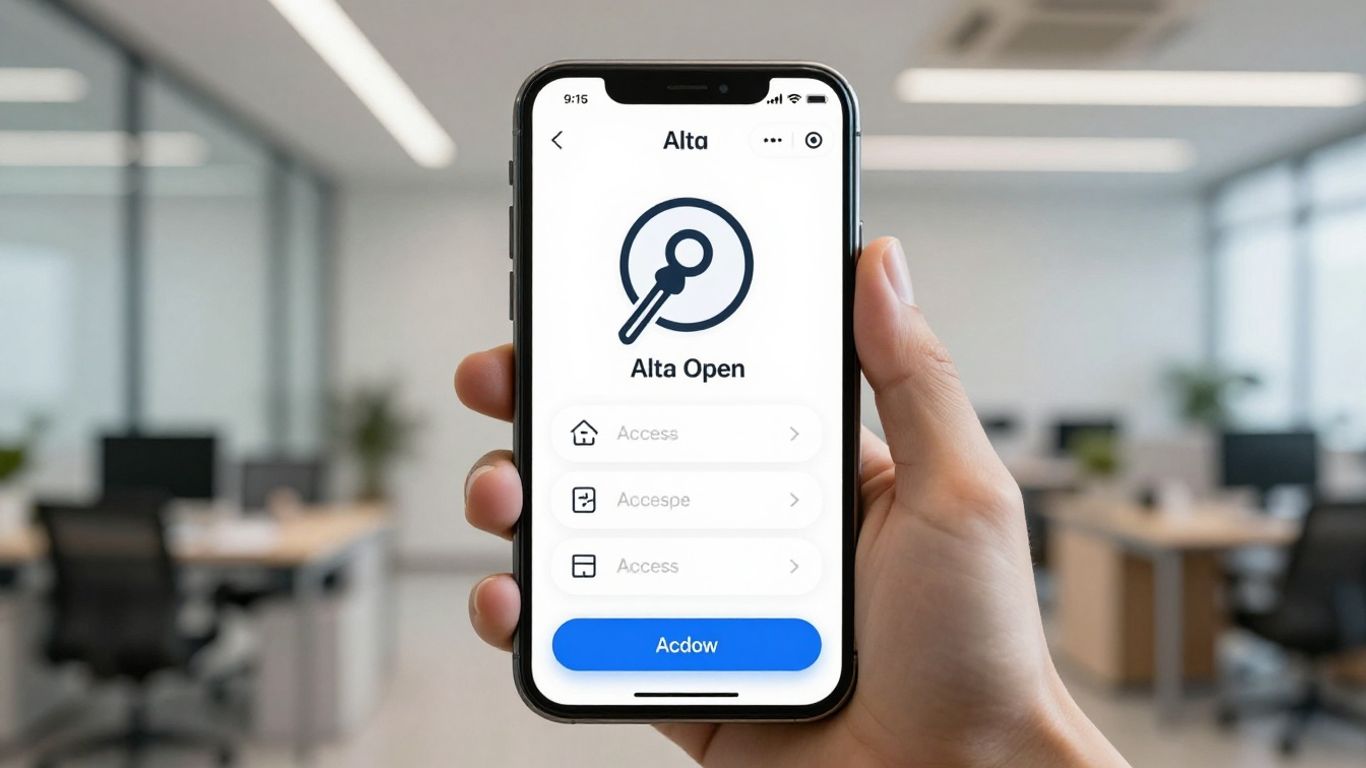
So, you've got this Alta Open App thing and you're wondering how to get it all set up? It's not as complicated as it might seem at first. Think of it like getting your keys to a new place, but digital. We'll walk through the basics, from making your account to actually using your phone to get through the door. It’s all about making sure the right people can get in when they need to, without a lot of fuss.
So, you're looking to get your facility hooked up with the Alta Open App for access control? It's a pretty neat system that basically lets you manage who gets in and out using your phone or an RFID tag, ditching those old-school keys. It's all cloud-based, which is handy because you can manage things from pretty much anywhere.
First things first, someone in your organization needs to set up an Avigilon Alta account. When you're creating this account, it's a good idea to use an email address that's not already tied to any purchases you've made in your SmartRec store. Think about using a general email for your organization, something that isn't linked to just one person or a specific admin in SmartRec. This keeps things running smoothly even if someone moves on.
It's easy to mix these two up, but they're a bit different. Access Management is more about the overall system – who has access, when, and for how long. Think of it as the big picture. Access Control, on the other hand, is the actual mechanism that grants or denies entry. The Alta Open App is a tool that helps you implement and manage access control within your broader access management strategy.
To get the hang of things, here are a few terms you'll bump into:
Setting up a dedicated email for your Avigilon Alta account, separate from individual user emails, can prevent access issues if an employee leaves the organization. This generic email acts as a central point of contact for the system.
Alright, so you've got your Avigilon Alta account set up, and you're ready to connect it with your SmartRec system. This is where the magic happens, linking your access control hardware to your membership and activity management. It's not super complicated, but there are a few key steps to get it all talking to each other.
First things first, you'll need your Avigilon Alta Organization ID. You can usually find this right in the URL when you're logged into the Avigilon Alta Controller. It's just a number, but it's super important for the connection. Keep it handy.
This step is pretty straightforward. You'll be heading over to the Apps section within your SmartRec admin dashboard. Look for the Avigilon Alta app and click on the 'Configure' button. This is where you'll punch in that Organization ID you just found. Along with the ID, you'll also need to enter the same login credentials you use for your Avigilon Alta Controller. This connection only needs to be set up once, and it stays active until you decide to turn it off.
Once your Organization ID and credentials are in, SmartRec will prompt you to connect a 'Site' from your Avigilon Alta account to your current campus in SmartRec. Think of this as matching up your physical locations with your digital ones. This allows the systems to properly sync up user data and access permissions. It's all about making sure the right people get access to the right doors.
To make sure everything flows smoothly and you can see scan data within SmartRec, you'll need to set up a webhook. This involves going back into your Avigilon Alta Controller, specifically to the 'Rules' section. You'll create a new rule, give it a name like 'SmartRec - Check-in overview', and then configure the trigger to send scan data. This webhook is what allows SmartRec to receive real-time updates from your Avigilon Alta readers. Without it, you won't see who's coming and going in your SmartRec reports.
Remember, the Avigilon Alta system uses unique email addresses for each user. If you have situations like a parent and child sharing an email, only one user record will be created. For those without an email, you can still use visitor check-in features in SmartRec or RFID tags for entry.
Here's a quick rundown of what happens when a user is set up:
This integration is designed to automate much of the user provisioning process, meaning you spend less time managing access and more time running your facility.
Alright, so you've got your Avigilon Alta account set up and linked with SmartRec. Now it's time to actually tell the system what doors and gates it's managing. This is where you define the physical entry points and how the system interacts with them.
First off, you'll want to set up webhooks. Think of a webhook as a little messenger that tells Avigilon Alta when something happens, like a scan. To get this working, you'll need the premium package from Avigilon Alta. Once you have that, you can configure the webhook in the Avigilon Alta Controller. It involves creating a rule that triggers when a scan occurs, sending that data back so you can see it in Access Management. This is pretty important if you want a full picture of who's coming and going.
Next, you need to define your entry points. In Avigilon Alta terms, these are your doors, turnstiles, or gates. You'll also set up "entry states" which basically dictate when access is allowed. This could be tied to specific times or events. You'll also link these entry points to "eligible activities" – meaning, what purchase or membership in SmartRec grants access through this specific door.
Finally, you'll group users together. These groups are then linked to specific schedules and entry points. For example, you might have a "Gym Members" group that gets access to the main gym door during operating hours. This makes managing permissions way simpler than trying to assign access to each person individually. It's all about making sure the right people get through the right doors at the right times. Setting up these zones helps keep things organized, especially if you have different membership tiers or access levels. You can create zones that mirror your membership plans, making it easier to manage access permissions in bulk. This is a smart way to handle things when you add new doors or remove old ones, without having to adjust each member's settings one by one. Learn more about HID Mobile Access for credential configuration details.
Setting up your access points correctly is key to a smooth operation. It ensures that your members can get in when they need to, and that your facilities remain secure. Take your time with this step; it pays off in the long run.
Here’s a quick rundown of what you’ll be configuring:
Alright, so you've got the Alta Open App integration set up, and now it's time to actually get people in the door. This part is all about making sure the right folks have access, and that it's managed smoothly. It's not just about handing out keys anymore; it's a bit more organized than that.
One of the cool things about linking Avigilon Alta with your system is that it can handle a lot of the grunt work for you. When someone signs up for an access-related item or membership, the system can automatically create a user profile in Avigilon Alta. This means you don't have to manually add every single person. It's a real time-saver, especially if you have a lot of new members coming in regularly. This process helps keep your user lists up-to-date without you having to constantly check.
This is where things get really smart. You can set up different access groups in Avigilon Alta that line up with your membership plans or activities. For example, if you have a "Day Pass" membership, those users can be put into a group that only grants them access during business hours. A "24/7 Access" member would be in a different group, obviously. This way, access is tied directly to what people have paid for, and it's all managed through the system. It makes granting permissions much simpler and less prone to errors.
Here's a quick look at how that might break down:
It's important to remember that each user in Avigilon Alta is linked to a single, unique email address. If multiple people share an email, only one user record will be created. For individuals without their own email, like young children, you can still manage their check-in through the Access Management system directly, without needing an Avigilon Alta user record.
Got guests or contractors coming in for a short while? The Alta Open App makes it easy to grant them temporary access. You can set up specific time windows or even single-use access credentials. This is super handy for ensuring security without giving out permanent access. You can manage these temporary passes right from the Alta Access mobile app, making it convenient for both you and your visitors. It's a flexible way to manage who comes and goes without complicating your main user groups.
So, you've got the Alta Open App integration set up, and now it's time to get your users actually using it to get through doors. This is where the mobile app comes into play. It's pretty straightforward, but there are a few things to keep in mind.
When someone first registers for an activity or membership that grants them access, they'll get an email. This email is your ticket to downloading the app. Don't be surprised if it still says 'OpenPath' – that was the old name for Avigilon Alta, and sometimes the branding takes a bit to catch up. The setup process needs to be done right on their phone.
Here's what they'll need:
Once they tap 'Set up phone' in the email and have Bluetooth and location services ready, they should see their organization's name pop up on the app screen. Pretty neat.
To make sure the mobile app works smoothly, a few technical bits need to be in place. It's not just about having the app installed; the phone itself needs to be ready to communicate.
Okay, so the app is set up, and the user is at the door. Now what? It's super simple. They just need to hold their phone or their RFID tag near the reader. That's it. The system checks their eligibility based on their registration in SmartRec, and if everything lines up, the door or turnstile unlocks.
It's important to remember that if their access isn't active yet (maybe they registered for something happening tomorrow), the system won't grant entry. All these attempts, whether successful or not, get logged. If they use the app or an RFID tag, it'll show up as 'Avigilon Alta' in the scan reports. If someone checks them in manually, it'll show the activity name instead.
If a user has an RFID tag, they don't strictly need the mobile app, though they'll still get the email to download it the first time their record is created. The tag is a standalone option for entry.
After their access period ends, or if they're no longer registered for an active item, Avigilon Alta will deactivate their user record, and they won't be able to get in. But if they sign up for something else later, their record gets reactivated, and they're good to go again when the time is right.
Alright, let's talk about making sure your Alta Open App setup is locked down tight. We've covered the basics, but there are a few more advanced settings that can really boost your security and give you more control.
So, by default, the Alta Open App has a "remote unlock" feature turned on. This means someone with access could potentially unlock a door or turnstile from anywhere, even if they aren't physically there. While this might be handy for some staff members, it's probably not something you want every single person who gains access to have. To switch this off, you'll want to head into the Administration section, then Account, and look for Security settings. Make sure the option for "Enable remote unlock by default for new users" is unchecked. This is a simple step that significantly reduces the risk of unauthorized remote access.
Think of zones as specific areas within your facility that you want to manage access for. You can set up different zones in the Avigilon Alta Controller. For example, you might have a "Gym Floor" zone and a "Pool Area" zone. Then, you can link specific entry points (like doors or turnstiles) to these zones. This allows you to control not just who can get into your facility, but also which specific areas they can access and when. It's all about creating layers of security based on user roles or membership types.
When a user's access needs to change – maybe they've upgraded their membership or their access has expired – you want that update to happen quickly and reliably. The Alta Open App syncs with your SmartRec account. If a participant registers for a new access-related item, Avigilon Alta usually syncs up the night before the access becomes effective. If their access expires, the user record is deactivated. It's good to be aware of this sync schedule so you know when changes will take effect. For immediate updates or manual overrides, you might need to check the Avigilon Alta Controller directly.
It's important to remember that each user record in Avigilon Alta is tied to a single, unique email address. This means if multiple people share an email, only one user record will be created. For individuals without their own email, like children, you can use the account owner's email or manage their check-in manually through Access Management or a kiosk if they don't have a dedicated user record.
Sometimes things don't go exactly as planned, and that's okay. Here's a look at some common issues and tips to keep your Alta Open App integration running smoothly.
One thing to know right off the bat is that Avigilon Alta links each user record to a single, unique email address. This pulls from the email in your SmartRec system. If a child doesn't have their own email, the system will use the account owner's email. This can cause a hiccup if both the adult and child register for something that grants access. Only one user record gets created, usually for whoever's access item is effective first. The second person won't get a duplicate record.
Remember, the system is designed for individual access tied to a unique identifier. While shared emails can be a common scenario, especially with families, the integration prioritizes a one-to-one user-to-email mapping for security and tracking.
Getting a clear picture of who's coming and going is important. When someone registers for an access-related item, Avigilon Alta handles their user record. If their access item is no longer active (like if an event ends or a membership expires), Avigilon Alta will deactivate their record and revoke access. If they sign up for something else in the future, their record gets reinstated automatically.
Most of the time, the integration should work without a hitch. However, if you run into something unexpected or need clarification on specific configurations, reaching out is the best next step. Don't hesitate to contact the support team if:
Reaching out to support can save you a lot of time and frustration, especially when dealing with access control systems where accuracy is key.
So, that's the rundown on getting Avigilon Alta set up with your system. It might seem like a few steps at first, but once it's all connected, managing who gets in and when becomes way simpler. You've got the basics down for creating accounts, linking things up, and even setting up those handy webhooks for better tracking. Remember to check the settings, especially that remote unlock feature, to make sure it fits how you want things to work. With this integration, you're well on your way to a more organized and secure way to handle access for your space.
Think of Access Management like the main office deciding who gets to go where and when. Access Control is the actual lock on the door or the security guard making sure only the right people get in. SmartRec helps with the 'who and when' (Management), while Avigilon Alta handles the 'how' they get in (Control) using things like doors and readers.
Yes, it's best to use an email that's not tied to any past purchases from your SmartRec store. A general company email is a good idea, so it doesn't matter if one person leaves. This keeps things organized and avoids confusion.
Absolutely! Once you set up the Avigilon Alta app on your phone (make sure Bluetooth and location services are on), you can just hold your phone near the reader to unlock doors, gates, or turnstiles. It's like a digital key!
If your access item isn't active anymore, Avigilon Alta will automatically turn off your access. But if you get a new one that starts later, your access will be turned back on right before it's needed. It's all about making sure you only have access when you're supposed to.
No, each person needs their own unique email to create a user account in Avigilon Alta. If a child doesn't have an email, the parent's email might be used, but only one account is made. If you have issues, you can always use the visitor check-in option.
Yes, Avigilon Alta works well for giving temporary access to visitors or guests. This is super helpful for things like day passes or short-term bookings, making sure everyone can get in when they need to, without messing up your main access system.
Connect with us to explore our scalable solutions tailored to your unique needs and receive a personalized free quote.


